
The best AION 2 DPS meter to start with is the game's built-in Combat Analysis. It requires no separate installation and can measure your DPS, total damage, combat time, healing, hit results, and damage by skill. Use a third-party meter only when you need live party comparisons, a persistent overlay, detailed timelines, shareable combat logs, or leaderboard features.
Third-Party Tool Sites
For Global players, third-party compatibility must be checked tool by tool. AionFlex and Abyss Logs both claim Global support, while A2Tools currently lists Taiwan and Korea rather than Global. These are independent community applications, and statements about accuracy, passive packet capture, or ban safety come from their developers rather than the publisher. There is no publisher-backed no-ban guarantee.
Choose the Right Meter for Your Goal
| Goal | Best starting option | Important limitation |
|---|---|---|
| Test two builds on the same target | Built-in Combat Analysis | Primarily designed around your own combat record rather than a full external log platform |
| Check your skill damage distribution | Built-in Combat Analysis | Keep target, duration, and conditions consistent between tests |
| See live party DPS and boss HP | AionFlex or Abyss Logs | Both are independent third-party applications |
| Save and review skill or buff timelines | Abyss Logs, AionFlex, or A2Tools | Feature availability varies between free and paid tiers and between supported regions |
| Share a fight with another player | Abyss Logs, AionFlex, or A2Tools | Review upload and visibility settings before sharing |
| Run a meter with AION 2 under Proton | A2Tools offers Linux-oriented packages | This does not establish official Linux or Steam Deck support for AION 2, and Global compatibility is not confirmed |
| Compare yourself with leaderboard records | AionFlex or Abyss Logs | Uploaded fights are a selected sample, not a census of every class or player |
Start with Combat Analysis if your question is simply, “Did this build change improve my damage?” Move to an external tool only when the additional detail solves a specific problem.
Use the Built-In Combat Analysis First
On PC, the default shortcut for Combat Analysis is Ctrl + X. It can also be opened from the main menu under Content. If the shortcut has been changed, look for the Combat Analysis entry in the Gameplay key-binding settings.
The window displays combat time, DPS, total damage, hit statistics, and a skill-by-skill damage table. It can remain open during combat and keeps a history of recorded sessions. Once that history reaches its limit, older records are removed, although the exact maximum record count is not established here.
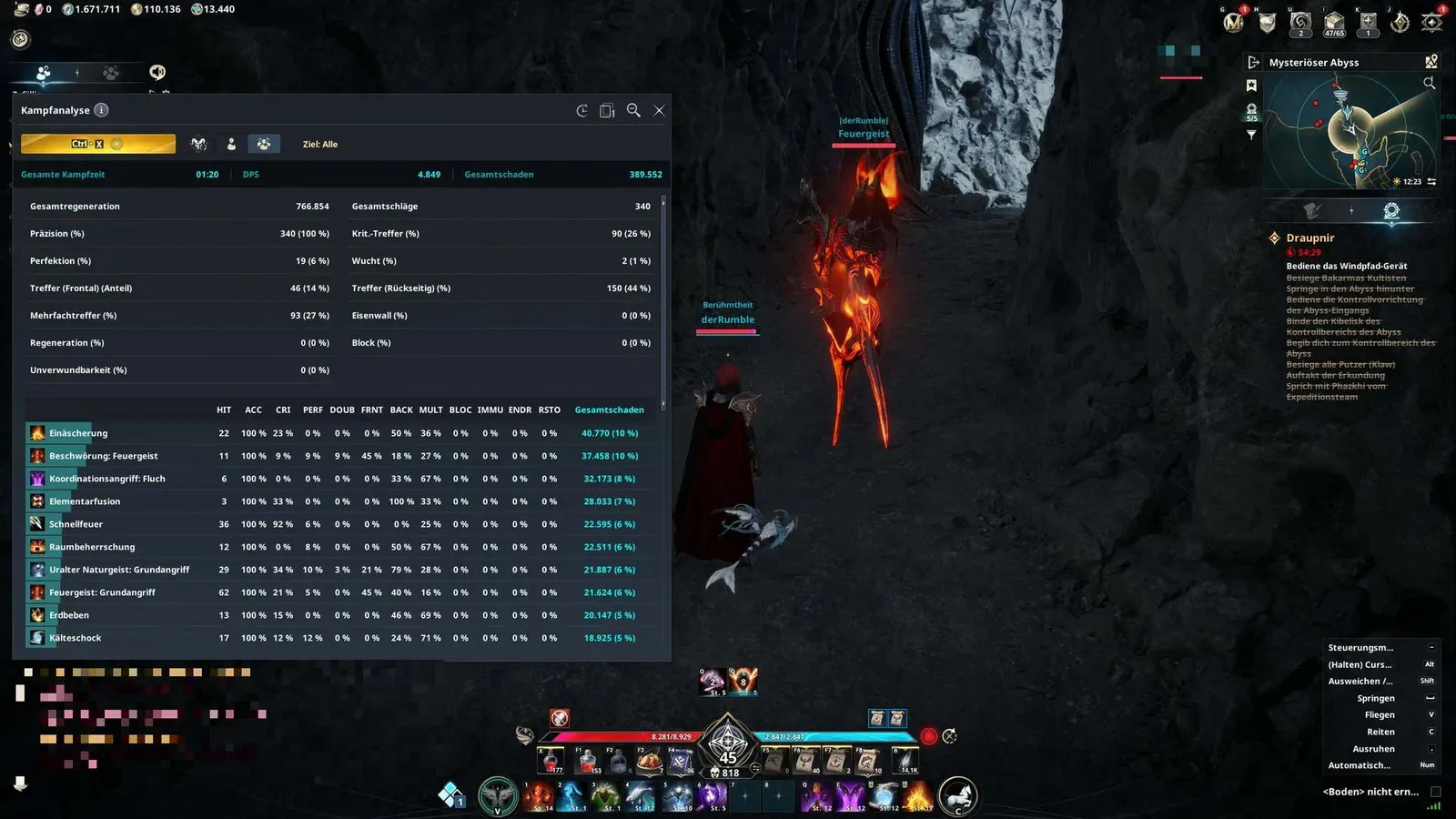
The built-in Combat Analysis window exposes headline DPS values and detailed combat statistics.
Pick the Correct Analysis Mode
Combat Analysis has three measurement modes:
| Mode | Start condition | Best use |
|---|---|---|
| Auto-Analysis | Starts when you attack a Training Scarecrow or boss | Repeated boss pulls and controlled training tests |
| Single-Target | Select a target and press Start; recording begins with your first attack on that target | Isolating one enemy from surrounding combat |
| Multi-Target | Press Start; recording begins on your first attack and continues until you press Stop | Packs of enemies, dungeon sections, and area-damage tests |
Auto-Analysis does not provide a manual start for arbitrary targets. If it appears to do nothing against a normal enemy, switch to Single-Target or Multi-Target mode rather than assuming the meter is broken.
Read the Built-In Statistics
The three headline figures answer different questions:
- DPS shows the average damage dealt per second during the recorded combat period.
- Total Damage shows the complete damage delivered during that record.
- Combat Time gives the duration used for the DPS calculation.
The overview also reports Total Heal, Total Hits, Accuracy, Critical Hit, Perfect, Double, front and back hits, Multi-Hit, Endurance, Regeneration, Block, and Invincibility events. Below it, the skill table sorts individual skills by total damage and shows each skill's share of the result.
The abbreviated columns include HIT, ACC, CRI, PERF, DOUB, FRNT, BACK, MULT, BLOC, IMMU, ENDR, and RSTO. The same window can also display damage taken and the hit properties associated with incoming damage. That information can be more useful than raw DPS when reviewing tanking, survival, or healing pressure.
Do not treat every percentage as a direct score. A high critical-hit percentage may reflect a short burst window, while a high back-hit percentage can depend on positioning and the target's behavior. Read each value in the context of the test you actually ran.
Run a Fair Built-In Test
Use this sequence when comparing a Stigma choice, Daevanion path, skill order, or other build change:
- Choose the same Training Scarecrow for both records.
- Use the same analysis mode and approximately the same duration.
- Begin from the same resource, cooldown, and buff state.
- Perform the first rotation without changing the build midway.
- Save or note DPS, total damage, skill share, and relevant hit statistics.
- Reset the record, change only one major variable, and repeat.
- Run several attempts before judging the result, especially if critical hits or opening burst strongly affect short tests.
A training result is a controlled benchmark, not a prediction of every dungeon pull. Boss movement, mechanics, downtime, target switching, deaths, and forced defensive play can all change real-fight DPS. Compare training records with training records and boss records with the same boss and difficulty.
Third-Party DPS Meter Options
Third-party tools add party-wide views, overlays, encounter storage, timelines, and public or shareable records. Their feature pages were current around the October 2026 Global launch, but software support can change quickly. Confirm the current release, supported region, and operating-system requirement before installing anything.
AionFlex
AionFlex advertises support for Global, Korea, and Taiwan on Windows 10 and 11. Its free offering includes real-time DPS, an in-game overlay, boss HP, a top-five party view, your own skill rotation and per-skill breakdown, uploaded-fight reports, character profiles, and performance trends for your own characters.
Its paid tier adds features such as full breakdowns for as many as ten party members, party rotation timelines, defense and accuracy analytics, cross-session history in the desktop application, additional report cards, and a beta PvP tracker. Check the current checkout price and renewal terms rather than relying on an old quoted price.
The developer says AionFlex reads combat packets through Npcap without modifying the client, game files, or game memory. It also claims Global compatibility and accuracy against Combat Analysis. Those are developer claims, not an NCSOFT approval or guarantee.
Abyss Logs
Abyss Logs is a free community meter for 64-bit Windows. Its developer lists Global regions alongside Korea and Taiwan and describes support for both game clients. The overlay can show individual and party DPS, boss HP, combat power or gear score, damage share, and a berserk timer.
Its deeper analysis includes skills, healing, crit and positional hit rates, openers, skill timelines, buff timelines, buffs active on individual casts, encounter history, training-dummy duration caps, and dungeon-lobby information. Fights can be uploaded for browser-based review, with public, unlisted, and private visibility choices described by the service.
Installation requires Npcap. The project's instructions specifically call for WinPcap API-compatible Mode during Npcap installation. The meter requests administrator privileges for packet capture, and it may require Microsoft's WebView2 runtime. Region selection is available under Settings → General, while account connection for sharing is optional.
Abyss Logs claims its readings are fully accurate and says passive capture cannot cause a ban. Treat both statements as claims from the independent developer. The project explicitly states that it is not affiliated with or endorsed by NCSOFT.
A2Tools
A2Tools describes itself as a free, open-source, GPL-3.0 combat-analysis tool. Its feature list includes real-time DPS, total damage, boss names, ping, per-player statistics, skill breakdowns, timelines, combat history, an OBS browser-source overlay, and public combat logs.
Its current region statement lists Taiwan and Korea. That is not enough to claim support for the Global client. The project also offers Linux packages and describes running AION 2 through Proton, including Steam Deck-oriented packages. This demonstrates the tool developer's intended environment only; it does not make Linux or Steam Deck an officially supported AION 2 platform.
A2Tools reports 99% accuracy and passive packet parsing. Again, these are project claims. A Global player should not install it expecting compatibility unless the project's current release notes explicitly add the Global service.
Install and Configure a Third-Party Meter Carefully
Use a deliberate setup process instead of downloading the first executable attached to a discussion post:
- Confirm the tool supports your region. Global, Taiwan, and Korea use different service contexts. A working Taiwan or Korean build does not automatically work on Global.
- Confirm the operating system. AionFlex lists Windows 10 and 11. Abyss Logs lists 64-bit Windows. A2Tools offers Linux-oriented packages but does not currently establish Global support.
- Use the project's own distribution route. Avoid mirrors, renamed installers, and repackaged copies.
- Inspect the publisher prompt. AionFlex says its signed Windows publisher is
WHILETRUE DEV S.R.L. Stop if the name or file origin does not match what the current project documentation says. - Install the required capture component. Both AionFlex and Abyss Logs identify Npcap as a requirement. Abyss Logs additionally specifies WinPcap API-compatible Mode.
- Choose the correct region in the meter. A wrong selection can produce missing or incorrectly labeled data.
- Disable automatic uploads initially. Record one local test first, inspect what the application captured, and then choose whether to connect an account or share encounters.
- Test on a Training Scarecrow or a short, familiar fight. Check whether combat begins and ends correctly before relying on the meter during a group run.
Do not bypass an antivirus or SmartScreen warning merely because a project says false positives can occur. Verify the download origin, expected publisher, current release, and community issue tracker first. A warning is not proof of malware, but it is also not evidence that a file is safe.
Read DPS Logs Without Misreading Them
A meter produces a measurement, not an automatic verdict about a build or player. The fight definition and comparison group matter as much as the displayed number.
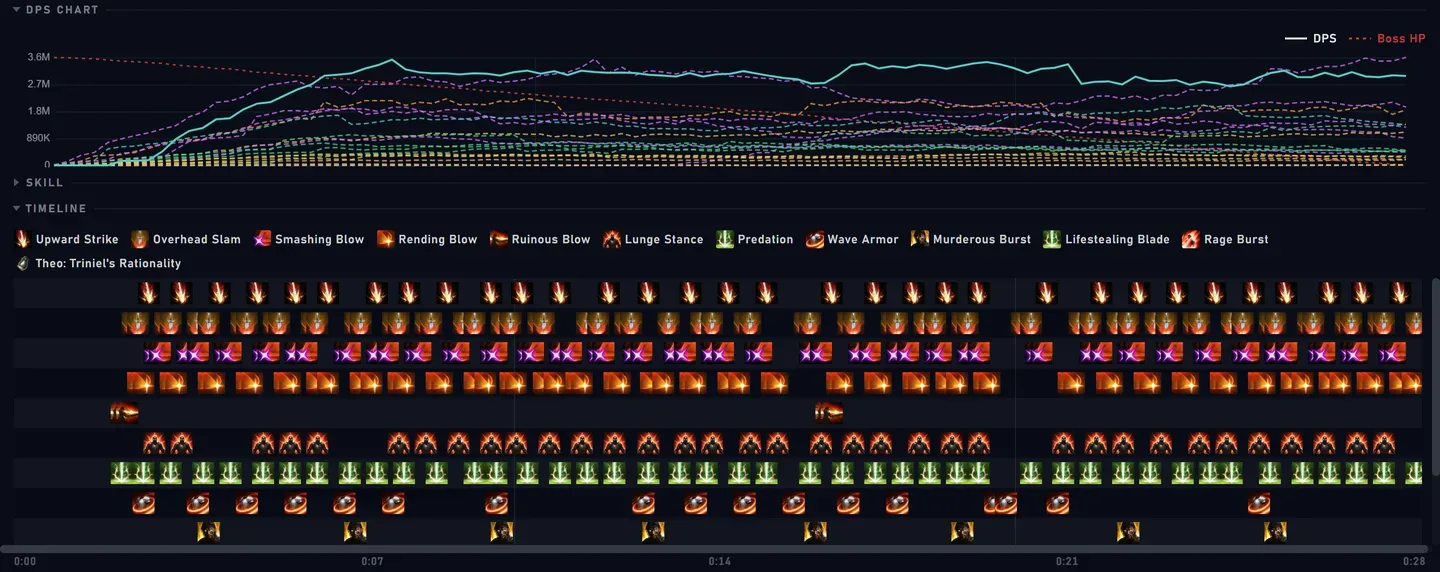
A skill timeline reveals cast order, rotation gaps, and missed opportunities.
Separate Total Damage from DPS
DPS divides damage by the measured duration. A player can finish with high total damage but lower DPS in a long encounter, or high DPS but low total damage in a short attempt. Always keep combat time visible when comparing records.
Some third-party tools distinguish whole-fight DPS from active-time DPS. Abyss Logs labels these as eDPS and aDPS: one covers the complete fight, while the other considers active time. Never compare values calculated with different time definitions as if they were the same metric.
Compare the Same Encounter Conditions
Use the same boss, difficulty, party size, and approximate Combat Power band. Different bosses create different movement, downtime, target access, and fight lengths. A record achieved on one boss cannot establish that a class is stronger than another class whose best upload came from a different encounter.
Party DPS is the entire group's result, not the uploader's personal DPS. A fast clear may reflect party composition, gear, coordination, or a highly optimized group. It should not become a personal target without checking the underlying roster and conditions.
Use Skill Shares to Diagnose Rotation Problems
Start with the skills contributing the largest share of total damage. Then inspect hit count, critical rate, positional hits, and the timeline where available. Useful questions include:
- Did a high-impact skill appear as often as expected during a fight of this length?
- Were there long empty gaps caused by movement, hesitation, or mechanics?
- Did a positional skill lose value because attacks landed from the front?
- Did the test end immediately after an opening burst, making the average unusually high?
- Did a multi-target record inflate a skill that is less important against one boss?
Change one variable and repeat the test. Replacing several skills, gear pieces, and board choices at once may produce a different number without revealing which change caused it.
Treat Leaderboards as Selected Uploads
Leaderboards contain fights submitted by meter users. They are not a complete record of the server population. Character verification may apply only to the uploader, samples can be sparse, and individual boards may separate region, server, boss, difficulty, Combat Power band, or time window.
A highest parse is an extreme record, not the typical result for a class. Healer damage records measure damage rather than the full value of healing and support. Biggest-hit tables favor isolated burst events, while fastest-clear tables include the performance of an entire party. None of these views should be turned into a general class tier list without broader, comparable evidence.
Sharing, Privacy, and Tool Risk
Combat logs can reveal character names, server, class, gear score, Combat Power, skill use, and party performance. Before uploading, check whether a record will be public, unlisted, or private. If the tool offers name hiding for streams, enable it before opening the overlay on a broadcast rather than after names have appeared.
Party members may not expect their combat information to be published. Use logs for self-review and cooperative improvement, not harassment or public shaming. When sharing a comparison, explain the boss, difficulty, measurement type, duration, and whether the record covers the whole fight or active time.
Passive packet parsing is different from editing the game client, but that distinction does not create an official permission. AionFlex and Abyss Logs state that they do not inject code, modify files, or interact with game memory. A2Tools similarly describes passive parsing. These technical descriptions and their no-ban language remain developer assertions. Publisher policy or enforcement can change, so use third-party software at your own discretion.
Fix Common Meter Problems
If the built-in meter records nothing, first check the selected mode. Auto-Analysis is triggered by a boss or Training Scarecrow; use Single-Target or Multi-Target mode elsewhere. Also verify the Ctrl + X binding if the window does not open.
If a third-party overlay shows no data:
- Confirm that the meter's selected region matches the service you are playing.
- Check that its supported-region list actually includes Global.
- Verify that Npcap is installed when the chosen tool requires it.
- For Abyss Logs, confirm that Npcap was installed in WinPcap API-compatible Mode and that WebView2 is available if requested.
- If a VPN or ping reducer is active, confirm that the meter is reading the network adapter carrying game traffic. Compatibility claims do not guarantee every configuration.
- Test a clean boss or Training Scarecrow record so old history is not mistaken for live data.
If the overlay blocks mouse input, use its lock or click-through control where available. Both AionFlex and Abyss Logs describe options that keep the display visible while allowing clicks to pass to the game.
If an uploaded fight does not appear immediately, verify that you are signed in, data sharing or automatic uploads are enabled, and the fight belongs to the board's region, boss, and difficulty. Processing and percentile updates may not be instantaneous.
Use a Repeatable DPS Review Routine
A useful meter session should end with one actionable observation rather than a vague score. Run a controlled built-in test first, identify the skill or downtime pattern that needs attention, make one change, and repeat. Use a third-party timeline only when it adds information the built-in table cannot show.
For dungeon review, keep the full encounter context: boss, difficulty, clear or wipe, duration, party DPS, your damage, and any long mechanic phase. Judge improvement against your own comparable records before looking at public leaders. This avoids copying an opening sequence, build, or target number that depended on different gear and encounter conditions.
The practical order is simple: Combat Analysis for controlled personal testing, an external overlay for live party information, and uploaded logs for detailed review or sharing. Preserve those boundaries and the numbers become diagnostic evidence instead of a misleading class ranking.
Next Guides
Interpret measurements separately from progression scores and role comparisons, and check control calibration.