
AION 2 does not present a single option named Mouse Sensitivity. On the Global Windows PC client, camera response is controlled by two separate settings: Camera Horizontal Movement Speed and Camera Vertical Movement Speed. Use the horizontal control for left-to-right turns and the vertical control for up-and-down movement.
The quickest route is to hold Alt, reveal the cursor, and select the camera icon near the bottom-left of the game screen. You can also open Settings, select Graphics, and enter Camera / Direction. The exact speed that feels right depends on your mouse DPI, available mouse space, and how precisely you want to track targets, so there is no universal best numeric value.
These controls affect camera rotation. They do not function as a separate cursor-sensitivity setting, and they will not solve delayed or interrupted input caused by another problem.
Open the AION 2 camera speed controls
Use the on-screen camera panel when you want to make a quick adjustment without searching through the full Settings menu:
- Move to a safe position where you can test the camera without handling an active fight.
- Hold Alt to display the cursor. AION 2 normally uses mouse movement to steer the camera, so the cursor is hidden during regular camera control.
- Look near the bottom-left edge of the screen for the camera symbol. It sits above the emote icon and may be difficult to see when chat text covers that area.
- Select the camera symbol to open the compact camera controls.
- Find the Movement Speed section and identify the horizontal and vertical camera speed sliders.
- Change only one slider, then rotate the view and judge the result before changing the other one.
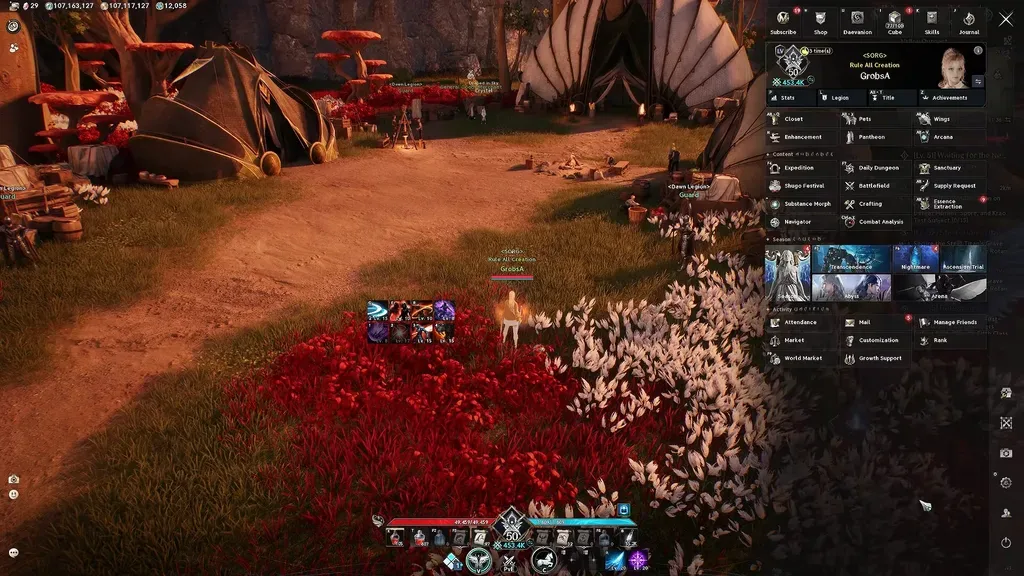
The quick camera-control route is accessed from the lower-left HUD.
While the compact panel is open, you can use the right mouse button to rotate the camera and feel the change. This makes the shortcut useful for small corrections, but a repeatable test is still better than rapidly moving both sliders until the camera merely feels different.
The Alt key is only revealing the cursor so you can select the icon. It is not a sensitivity modifier. If cursor movement itself feels wrong while the camera is stationary, changing camera movement speed is not a direct cursor fix.
Use the full Settings menu
The same camera speed controls are available through the full menu:
- Press Escape.
- Open Settings.
- Select the Graphics tab.
- Open the Camera / Direction sub-tab.
- Locate the horizontal and vertical camera movement speed controls.
The labels in this view may use the shorter wording Camera Horizontal Move Speed and Camera Vertical Move Speed. Keep the two menu routes separate: the bottom-left camera icon is the quick-access route, while Graphics > Camera / Direction is the full Settings route.
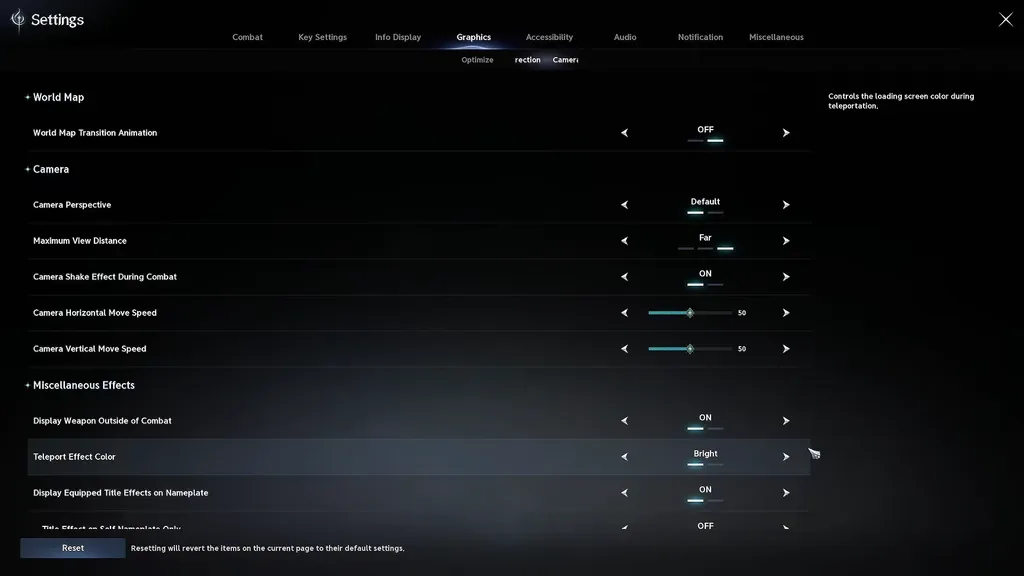
Both camera movement speed controls appear together in the Graphics camera settings.
The full page is useful when you also need to check camera distance, camera perspective, or camera shake. Those nearby options change what you see or how much visual motion the game adds, but they do not replace the horizontal and vertical speed sliders.
What the horizontal and vertical sliders change
Horizontal and vertical movement speed solve different problems. Test them independently instead of assuming both must share the same value.
| Camera behavior | Control to change | Adjustment | Expected result |
|---|---|---|---|
| You turn past enemies or landmarks | Horizontal speed | Lower it slightly | More mouse movement is required for the same left-to-right turn |
| Turning behind you takes too much mouse travel | Horizontal speed | Raise it slightly | The camera covers more horizontal distance per movement |
| Looking up or down overshoots the intended angle | Vertical speed | Lower it slightly | Vertical corrections become less abrupt |
| Looking up or down feels heavy or unresponsive | Vertical speed | Raise it slightly | The camera travels farther vertically for the same movement |
| Horizontal aiming feels good but vertical motion does not | Vertical speed only | Leave horizontal unchanged | Your established left-to-right control is preserved |
| Vertical control feels good but tracking enemies is difficult | Horizontal speed only | Leave vertical unchanged | Up-and-down movement remains consistent |
A lower setting makes the camera rotate less for a given mouse movement. That can improve fine corrections, but lowering it too far may force you to lift and reposition the mouse during large turns. A higher setting makes fast turns easier, but raising it too far can make you pass the point where you intended to stop.
Different horizontal and vertical values are valid. Combat tracking often demands frequent horizontal turns, while vertical movement is used for elevation changes, looking above or below the character, and correcting the viewing angle. Matching the two numbers matters less than making each axis predictable.
Build a repeatable tuning pass
Randomly dragging both sliders makes it difficult to identify which change helped. Use one fixed route and one repeatable movement test instead.
- Keep your normal mouse DPI. If the pointer already feels comfortable in other games and on the desktop, begin with that familiar hardware setting. Changing DPI first changes the input you use everywhere, not just AION 2 camera rotation.
- Record both current camera values. A screenshot or a short note gives you a known baseline. You can return to it if a new setting makes control worse.
- Choose a fixed landmark. Stand in a safe area and center a clearly recognizable object on the screen. A sharp corner, doorway, statue, or other stationary feature is easier to judge than a moving player.
- Tune horizontal speed first. Move the mouse sideways at a comfortable pace, turn away, and then return to the landmark. Reduce horizontal speed if you repeatedly pass it. Increase horizontal speed if reaching it consumes more mouse space than you can comfortably use.
- Repeat the same movement several times. A single good stop may be accidental. Look for a setting that lets you return to the landmark consistently.
- Tune vertical speed separately. Center the landmark again, then test deliberate upward and downward adjustments. Change only the vertical slider during this pass.
- Test while moving. Walk around the landmark while keeping it near the same point on the screen. This checks tracking rather than only testing a stationary turn.
- Verify the setting during normal play. A safe landmark test establishes control, but combat adds targets, effects, character movement, and pressure. Make only small follow-up changes after that check.
Tune horizontal speed for controlled turns
Horizontal speed should let you perform both broad turns and small corrections without fighting the mouse. If a fast turn regularly sends the target beyond the center of the screen, lower the horizontal value. If you run out of physical mouse space before completing a comfortable turn, raise it.
Do not judge horizontal speed only by how quickly you can spin. A useful setting must also let you stop on a target and keep it framed while your character changes position. A very high value may make a rapid turn easy but make the final correction unreliable.
Tune vertical speed for stable viewing angles
Vertical speed should allow deliberate changes in elevation without making ordinary mouse movements throw the camera sharply upward or downward. Lower it if small corrections feel exaggerated. Raise it if you must drag farther than expected to inspect something above or below your current view.
Keep horizontal speed unchanged while making this decision. Otherwise, a simultaneous change in left-to-right response can disguise whether the vertical adjustment actually helped.
Verify the result in play
Once both axes feel predictable, repeat the fixed-landmark test while moving around it. You should be able to keep the object framed, turn away and reacquire it, and make a small vertical correction without overshooting. Then try the same settings during ordinary combat before treating them as your baseline.
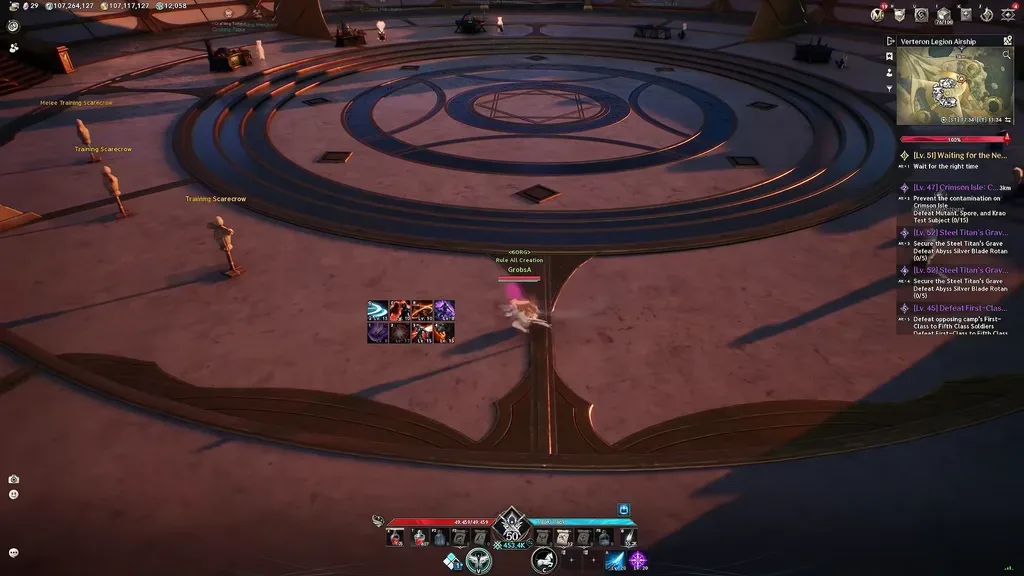
Use the fixed arena layout and training dummies as visual references while testing camera movement.
A setting is practical when it supports the actions you perform repeatedly, not when it matches someone else's number. Preserve enough speed for large turns while retaining enough control to stop where intended.
Account for mouse DPI without chasing a borrowed value
Mouse DPI changes how much movement the mouse reports. AION 2's camera movement sliders change how strongly the game turns the camera in response. The resulting feel comes from both, which is why copying another player's slider value does not guarantee the same result.
If your current DPI works well outside AION 2, leave it in place and tune the in-game camera controls first. That isolates the change to AION 2 instead of altering cursor behavior throughout the PC. If you intentionally change DPI later, repeat the tuning pass because the same in-game values will no longer produce the same physical response.
Physical space matters too. A player using a large mouse pad can accept more travel for fine control, while a small usable area may require faster turning. Neither setup produces a universally correct number. The useful test is whether you can turn far enough without repeatedly lifting the mouse and still stop accurately on a chosen point.
Avoid using another player's extreme DPI or slider value as a shortcut. It describes that player's hardware and preferences, not a verified AION 2 optimum.
Separate camera speed from nearby camera options
Several options on Graphics > Camera / Direction can change how camera movement feels without being mouse sensitivity controls:
- Camera distance changes how far the view can sit from the character. A farther view reveals more surrounding space, but it does not change the horizontal or vertical response rate.
- Camera perspective changes the viewing presentation. Recheck your tracking after changing perspective because the same rotation can look different.
- Camera shake adds visual movement during action. Turn it off if the motion harms comfort or makes the scene harder to read, but do not expect that change to alter actual mouse response.
- Teleport Effect Color and world-map transition effects affect presentation rather than camera sensitivity.
Game8’s launch-era settings guide did not identify a dedicated field-of-view slider. Camera distance is therefore the available control for seeing more around the character, while the horizontal and vertical speed sliders remain the relevant controls for turn response.
Change presentation and movement-speed settings in separate passes. If you alter distance, shake, perspective, and speed at once, it becomes difficult to tell whether the camera is genuinely responding differently or merely looks different.
Troubleshoot sudden slow or stuck camera movement
A badly chosen value behaves consistently: the camera is always too fast or always too slow until you change it. A reported launch-period problem behaves differently. Players have described camera response suddenly becoming extremely slow even though the displayed settings did not change. Other reports describe the camera refusing to turn.
Use the symptom to choose the next action:
- Reopen the camera controls and compare the values with your baseline. If the values actually changed, restore them and test again. If they appear unchanged while camera response is dramatically different, treat the problem as a possible input fault rather than normal tuning.
- Move one slider slightly and test it. This checks whether the live response still follows the menu. Return to the recorded value after the test instead of creating a new permanent setting around a temporary fault.
- Restart AION 2. Multiple players reported that restarting restored normal camera response when the displayed values remained unchanged. This is a practical recovery step, not confirmation of the underlying cause.
- Retest the same movement before adjusting anything else. Use the fixed landmark and the baseline values. If the expected response returns, keep the known settings instead of compensating with a much higher value.
- Note what happened immediately before the change. Some reports associate the behavior with switching away from the game, while others mention Steam Overlay. Recording whether the issue followed an Alt-Tab, overlay use, or another repeatable action makes later diagnosis more useful.
Treat Steam Overlay as a diagnostic, not a guaranteed fix
One Steam player reported that disabling Steam Overlay through the game's Steam properties fixed sudden low camera sensitivity. Another reported the same problem despite already having the overlay disabled and associated it with switching away from the game. These reports conflict, so disabling the overlay is not a universal solution.
If you use the Steam client, you can disable the overlay temporarily, restart the game, and repeat the same test that previously triggered the issue. Change only the overlay state during that comparison. If the problem continues, leave the result recorded rather than repeatedly changing camera speed. The overlay check does not apply to a PURPLE launch in the same way.
There is no basis here for promising that the overlay setting permanently resolves the fault or that it is the sole cause. A restart remains the more consistently reported immediate recovery step, while a controlled overlay test can help narrow a Steam-specific case.
Distinguish sensitivity from delayed response
Sensitivity describes how far the camera rotates for a given mouse movement. Input delay describes how long it takes the camera to react. If the camera eventually makes the expected movement but reacts late, raising horizontal or vertical speed does not address that delay. Likewise, a camera that suddenly stops turning while its values remain unchanged should not be corrected by saving extreme slider values.
Keep the symptom description precise: note whether response became slow, stopped entirely, started late, or changed only on one axis. Also record the launcher, whether the game had just lost focus, and whether restarting restored the baseline. Those details are more useful for a support report than saying only that sensitivity feels wrong.
Preserve a stable baseline
After finding usable values, save a screenshot showing both sliders and avoid changing mouse DPI, camera speed, and presentation options simultaneously. If control later feels different, compare the displayed values first and repeat the same landmark test.
This baseline separates three situations cleanly: a deliberate settings change, a hardware DPI change, and a sudden response problem with unchanged values. It also prevents a temporary camera fault from pushing you toward an unnecessarily extreme permanent setting.
Next Guides
Check the active-combat context, distinguish control changes from measured performance, and verify the PC platform.