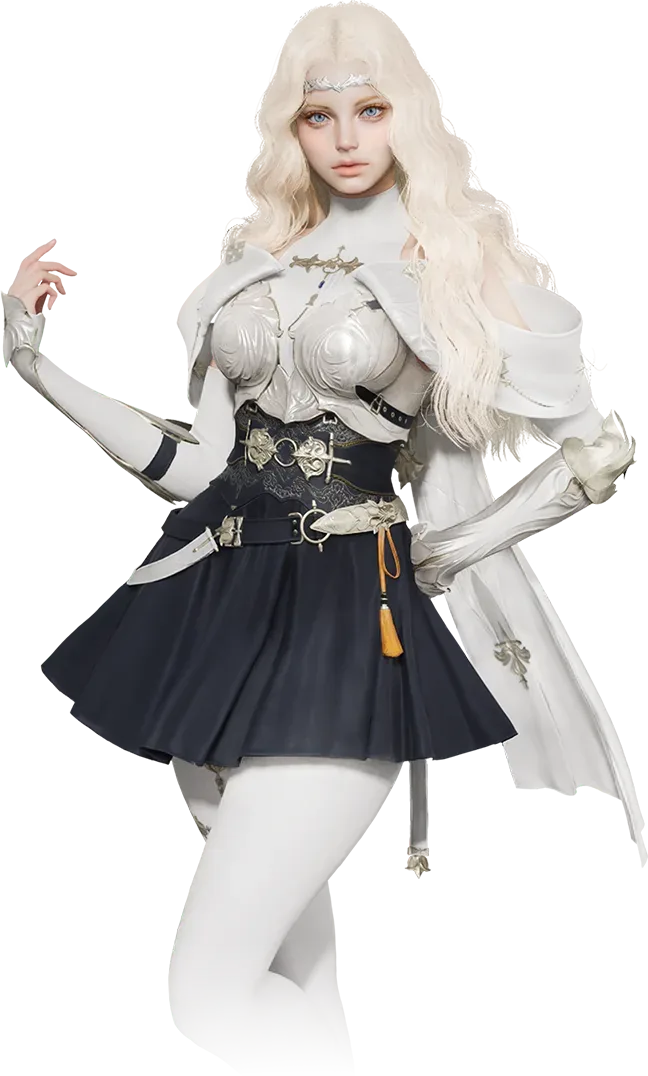
AION 2 character presets are shared appearances in the official Style Shop. Download a style to the correct account, open Manage Appearance in customization, and load it from Storage before confirming a change.
Appearance sharing is different from a combat preset. A style changes how a character looks; a combat preset concerns equipment, skills or other battle settings. If you are searching for another player's face or body design, follow the Style Shop route. If you want their damage setup, an appearance download will not supply it. This guide covers the Global service as of October 10, 2026.
Find the official Style Shop
The game's official website includes a Style Shop entry. You can also reach it from the customization menu using the Style Shop control near the top-left. Opening the shop lets you browse designs, while downloading a design requires the relevant PlayNC account step. Do not mistake the ability to view a gallery without signing in for confirmation that a style has reached your account.
The shop's home view presents creator styles with preview images, titles and download information. The current Global interface also offers a region selector, a time range and popularity views such as Most Downloaded. Set the region that matches your intended service before comparing results. A popular design in one region is not evidence that a different service can import the same shared entry.
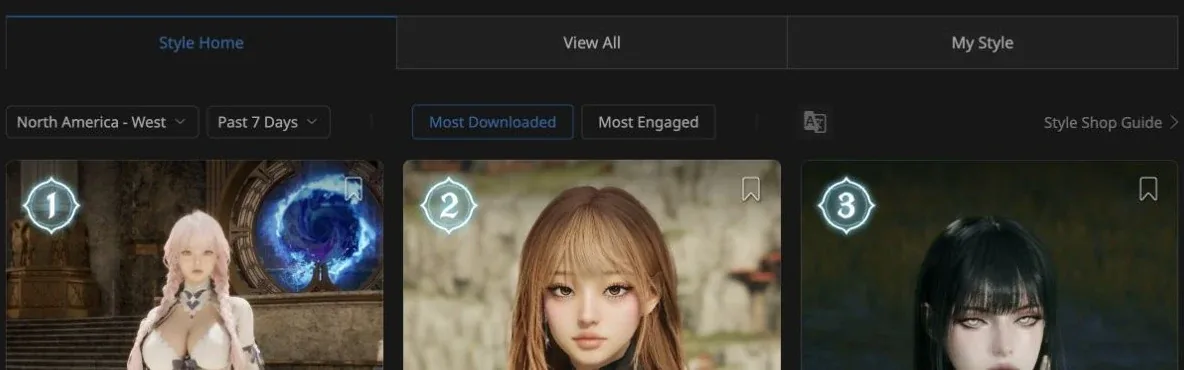
The official gallery separates the service region, browsing period and popularity view.
The pictured view is an actual official listing with North America - West, Past 7 Days and Most Downloaded selected. Those are browsing choices, not requirements to use every style. A ranking reflects the selected listing and period; it does not prove a preset is the best fit for your character or the newest version of its creator's work.
Compare a style before downloading it
Choose a design by its visible appearance rather than its download count alone. Look for the features you want to preserve: facial shape, hair, proportions and the general character presentation. A dramatic screenshot can make a design look different from the neutral view you will see while editing. Consider lighting, pose and camera distance before deciding that a preset is the wrong one.
Use the available Class and Style filters to narrow the gallery. Save a few favorites when that is useful, then compare the smaller group rather than downloading every attractive thumbnail. Read the style title and description to distinguish revisions. A creator can publish several similar designs, and a title containing a version number may help you identify the intended entry.
Remember that a shared appearance is not automatically a collection of the creator's equipped cosmetic items. A preview can show clothing, weapons or a scene that contributes to the look. Treat the downloadable style as the appearance data described by the shop, not a promise to grant every item visible in its preview.
Before leaving a design, retain enough information to find it again: its title, creator and the relevant listing context. This helps if you later discover that you downloaded a different revision. There is no need to publish your account identifier or share private login information to exchange a public design.
Download to the account you actually play
Open the selected style's detail view and find Download Style. The documented Global flow associates the downloaded style with your account after the PlayNC login step. Complete that step on the official site and check which account you are using. An address saved in one browser profile does not guarantee it is the account attached to the character you intend to edit.
After the download action, inspect the site's response instead of assuming that one click completed it. If you are returned to a login page, finish the official account flow and return to the selected style. If the shop shows an error, record the stage and message before trying again. Repeatedly downloading without checking the response can create confusion about whether anything reached Storage.
The shop download is one stage, and applying the appearance in the game is another. Do not spend a change resource simply because a browser download action appeared to work. First confirm that the intended style is available in the character's appearance interface and that its preview matches the design you chose.
For a link shared by another player, inspect the destination. Prefer the official style entry over an unrelated file-hosting page asking you to run software. The workflow described here uses the publisher's shop and the game's appearance tools; a preset exchange is not a reason to give another player access to your account.
Load the downloaded style in customization
In the game's customization interface, open Manage Appearance near the bottom-left. The documented flow places downloaded styles in Storage. Select the intended style and use Load to bring it into the character preview. This lets you inspect the appearance before deciding to confirm it.
Compare the loaded design with the original preview. Rotate or inspect the available preview views, paying attention to features that matter to you. If the character looks different, first determine whether the difference comes from presentation or an actual feature. Lighting and an equipped outfit can change the impression without demonstrating that the style data is broken.
Applying a change to an existing character can consume a Character Appearance ticket or use Quna. Read the live confirmation cost and available options before spending. A browsing or loading action should not be treated as the final purchase. Verify what will be consumed at the actual confirmation stage.
If you dislike the preview, stop before confirmation and return to your alternatives. Keep your preferred design distinct from the currently applied one. This is especially useful when comparing several creator styles: a loaded preview should not become an accidental commitment because you forgot which step changes the character permanently.
Create a shareable appearance snapshot
The documented Global sharing flow begins after reaching at least level 10. Open the menu with Escape and choose the Camera icon. In the snapshot interface, enable the Customization Info box at the bottom-right before taking the snapshot used for sharing. That setting is the important distinction between a normal souvenir image and the image intended to carry appearance information.
A regular screenshot, a social-media crop or a compressed image copied from someone else's gallery is not automatically a valid export. Preserve the original snapshot produced by the game's supported process. If you edit the picture, remove information or download a reduced preview, you may lose what the upload flow needs to recognize the design.
Find the generated snapshot in the game's local screenshot storage. The secondary Steam-specific guide describes a Saved_Steam and Screenshots/Windows route within the AION2 saved files. Client installation and service differences can affect the exact location, so use the files produced by the client you actually run rather than assuming a universal folder across Steam, PURPLE and regional installations.
Keep the snapshot and the title you plan to use together so you can identify the correct file. If you captured several nearly identical designs, inspect each one before upload. Uploading the wrong snapshot is a file-selection problem, not something that a more detailed style description can repair.
Register the design in the shop
From customization, open the official Style Shop and choose Register My Style. Upload the supported snapshot, then enter a title and description that help other players identify the design. Check the preview and registration response before treating the entry as published.
Describe what is actually shared. If the look was made for a particular character presentation or is a revision of an earlier upload, say so plainly. Avoid claiming that a style includes an outfit or item entitlement simply because it appears in the preview. Clear naming makes it easier for other players to find the version you intended.
Read the shop's policies before registration. Character designs and their titles are subject to the publisher's rules. The existence of an upload control does not imply permission to use any content, name or copyrighted character reference. Use the official policy displayed in the registration flow rather than another player's summary of what is allowed.
After a successful registration, share the actual style entry or the shop's supported sharing output. Let recipients download through the official route. A picture posted in a chat can show the design, but it should not be presented as a working import unless it preserves the required appearance information and is accepted by the supported workflow.
Diagnose a style that is missing from Storage
First check the browser account used for Download Style against the account used by the character. Then confirm that the site's action completed. A gallery favorite, a saved thumbnail and a completed account download are different states. Only the relevant download flow is described as transferring the style to the account.
Next verify the service region and client. A design shared in Korea or Taiwan before Global launch can remain useful inspiration without being a confirmed Global import. Avoid changing file extensions or inventing a conversion method to force an incompatible preset into the client. The available material does not establish a universal cross-region converter.
If Storage contains several similar entries, compare titles and previews. Load the intended revision rather than applying the first item. If the style appears but will not load, use the actual error or disabled state to identify the problem. A missing appearance-change ticket is a different issue from a style that never reached the account.
For your own upload, verify that the original snapshot was created with Customization Info enabled. A beautiful image without that data may not satisfy the sharing process. Recreate the supported export in the game when necessary rather than editing an ordinary screenshot to make it look like an export.
Keep a useful preset library
Maintain a small set of identifiable designs instead of a folder full of unnamed previews. Keep creator title, service context and revision together. Preserve your own original exported snapshots separately from edited showcase images so the usable file remains easy to locate later.
Before a paid appearance change, load the selected style, inspect the complete preview and read the resource confirmation. Before sharing, inspect the registered entry and confirm that it represents the intended revision. These checks address the most common mix-ups without requiring assumptions about undocumented file formats or account synchronization.
The complete appearance route is browse, select, download to the correct account, load from Storage, inspect and confirm. The complete sharing route is create a supported customization snapshot, register it in the official shop and share the resulting entry. Keeping those routes separate from combat presets makes AION 2 character presets much easier to use and troubleshoot.
Sources and verification
Reviewed for Global on October 10, 2026. The Global Style Shop is the official entry point. The independent Style Shop guide explains appearance storage and sharing; these references do not establish a universal local preset file format.