Download AION 2 wallpaper from the official teaser site's Wallpaper section. Select the artwork and use Download, then save the original image and choose a screen fit that preserves its proportions.
Open the official wallpaper gallery.
The official Global English teaser includes a dedicated Wallpaper gallery. This guide describes that route as of October 10, 2026, then explains how to use a downloaded image on a desktop or phone. A game screenshot, a social thumbnail and an official downloadable wallpaper are different files. Choose the full official image when you want the cleanest background, rather than enlarging a small preview copied from a search result.
Open the official Wallpaper gallery
On the English teaser site, choose Wallpaper from the left navigation. The section presents a large selected image, a Download control and a row of artwork previews with gallery navigation. Select the artwork you want before using the download control so that the saved file matches the visible choice.
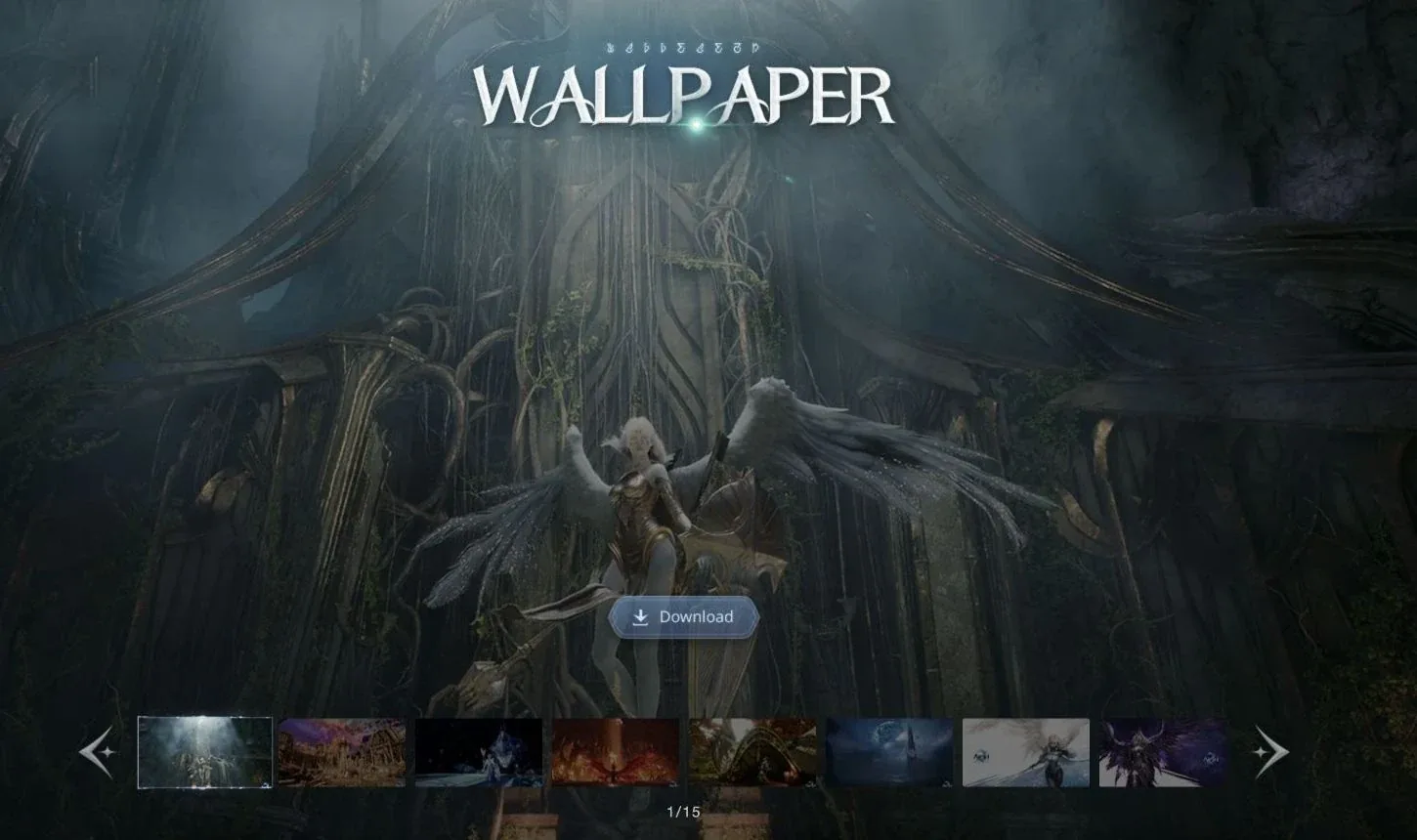
Select the artwork first, then use Download to save the original rather than the preview strip.
The pictured official gallery shows the Download control under the selected artwork. The preview strip helps you choose a design; it is not the file you should save for a large display. A screenshot of this page also includes the interface and therefore is not equivalent to the original wallpaper download.
The main official website includes a Media entry, and the publisher's Japanese English-language contents page also includes a wallpaper section. Keep track of which publisher page you use, especially when comparing different gallery designs. A third-party site describing official wallpapers is useful for directions, but the publisher's original download is the stronger destination for the actual image.
You do not need an appearance preset, a cosmetic purchase or a game character to choose a desktop background. Wallpaper is an image displayed by your device. It does not apply a character design to the game, unlock a skin or transfer an outfit to an account.
Save the full image rather than the preview
Use the gallery's Download action for the selected artwork. If the site opens a full image rather than saving it directly, save that image from the browser. On a desktop this is commonly available through the image's context menu; on a phone the image viewer may offer a save or download action after a long press.
Check the saved file before setting it as a background. Open it in an image viewer and confirm that it contains the intended artwork without the surrounding website controls. If the file shows a gallery navigation bar, an email-signup button or your browser tabs, you saved a screenshot rather than the wallpaper original.
Where the publisher offers more than one size or orientation, choose the largest appropriate original for your screen. Do not assume that every artwork has a separate mobile edition or a particular resolution. Use the actual options shown for that design. A high-resolution landscape image can still need cropping on a portrait display.
Keep the original download. If you later make a crop for a phone or another monitor, save that as a separate copy. This preserves the full composition for future adjustments and prevents a tightly cropped version from becoming the only file available when you change screens.
Match the image to your screen shape
Resolution describes the number of pixels; aspect ratio describes the shape of the image. A wallpaper can have many pixels and still be a different shape from your display. When those shapes differ, your device must crop the image, add borders or distort it to cover the screen.
For a standard landscape monitor, begin with landscape artwork. For a phone, look for a portrait option if the gallery offers one. For an ultrawide display, expect a standard landscape image to lose more vertical content when filling the screen, or to leave side borders when fitted without cropping. Extra pixels alone do not change that shape relationship.
Before choosing a fit, identify the important part of the composition. If a character's face is near one edge, a centered crop can remove it. If the artwork has a logo or broad symmetrical layout, a large crop can remove the balance that made you choose it. A quieter scene may be easier to fit across several devices than a tightly framed portrait.
Start with a preview and compare two sensible options: preserve the whole image or fill the entire display. Decide which compromise you prefer. Avoid stretching to force the exact shape, because it changes faces, circles and other recognizable forms instead of simply changing what is visible.
Set the wallpaper on Windows
On Windows, a saved image can commonly be set through its context menu using Set as desktop background. For more control, open Settings, then Personalization and Background. Choose the picture option and browse to the saved original. The exact labels can differ with the Windows version and language.
Use the fit control to evaluate the result. Fill covers the display while cropping excess content. Fit preserves the full image and can leave borders. Center is useful when you want the original at its native display size, but a small image may occupy only part of the desktop. Avoid Stretch if it visibly changes the image's proportions.
After applying the image, inspect it on the actual desktop rather than judging only the small settings preview. Check the main subject, screen edges and areas behind desktop icons. If a face or logo has been cropped out, change the fit or choose another composition before repeatedly downloading the same file.
On multiple monitors, check each screen separately. Different resolutions and shapes can make the same image look appropriate on one display and awkward on another. Use the available per-display background controls where your Windows configuration provides them, and prefer separate suitable files when one crop cannot serve both screens well.
Set the wallpaper on macOS
On macOS, the image's context menu may provide Set Desktop Picture. You can also open System Settings and Wallpaper, then add or select the downloaded image. Use the location where you actually saved the file instead of assuming it is in Photos or another application's library.
Compare the available fit options. A fill-screen choice generally covers the display by cropping, while a fit choice preserves more of the original composition. Inspect the desktop after applying it, especially on a display whose shape differs from the wallpaper. Choose according to what remains visible rather than accepting the first preview automatically.
If your Mac uses several displays, review the background on each one. A wallpaper that works on the built-in screen may need another crop on an external monitor. Keep the original file accessible so that changing a display does not require saving a low-quality copy from the already configured desktop.
When desktop icons obscure the subject, a different artwork or a quieter crop can help. Increasing image resolution will not remove that visual overlap. Choose a composition that gives icons space instead of interpreting the interference as a failed download.
Adapt the artwork for a phone
Save the full image to the phone's photo library or download location. On iPhone, the Wallpaper settings flow lets you add a new wallpaper and choose a photo. On Android, a Gallery or Photos app commonly provides Set as wallpaper. Menu names and available options vary by operating system version and manufacturer.
Choose whether the image is for the lock screen, home screen or both. Preview each destination. The lock screen includes a clock and other interface elements, while the home screen places icons over the image. A composition that looks excellent on one can be difficult to read on the other.
A landscape AION 2 wallpaper will normally need a substantial crop on a portrait phone. Reposition the image so that the intended subject remains visible, then check the preview at the actual phone size. If two subjects sit far apart, a portrait crop may only preserve one. That is a composition limit, not an error in the official file.
Avoid repeated zooming into a small thumbnail. If details become blurry after enlargement, return to the full original or choose a closer composition that needs less cropping. Where no official portrait version exists, preserve the original landscape file and create a separate crop rather than overwriting it.
Fix a blurry or stretched background
For blur, first check whether you saved the gallery thumbnail, a search preview or the original download. Open the file independently and inspect its dimensions and sharpness. A small image can look fine in a browser preview but become visibly soft when expanded to cover a large monitor.
Next look at the crop and zoom. A full-resolution original can still appear less detailed if the device magnifies a tiny part of it. Reduce the zoom or choose a composition that places the subject closer to the center. Do not keep increasing scale in an attempt to recover detail that the chosen crop no longer contains.
For distortion, change the fit mode rather than editing the character's proportions. Faces that look too wide or narrow often indicate stretching. Fill and Fit offer different tradeoffs while preserving shape. Compare them using a clearly recognizable feature so the effect is easy to judge.
If the file itself looks correct but the background appears different, inspect the wallpaper settings and preview. Some devices apply additional presentation effects or position the image differently between screens. Use the available settings on your own device; this guide does not promise a universal switch for every model.
Keep downloads useful and identifiable
Name or organize your saved files so you can distinguish original artwork from phone crops, edited versions and web previews. Keep the publisher's original intact and use separate copies for each display adjustment. This prevents a later crop from silently replacing the version that still contains the complete composition.
If you share the wallpaper with someone, direct them to the official gallery for the original. Public availability does not automatically grant permission for commercial reuse, redistribution as your own asset pack or removal of attribution. Personal desktop use and publishing the art in a product are different uses with different requirements.
A successful setup has three checks: the file is the intended full image, the fit preserves its proportions, and the subject remains useful behind your device's interface. Once those are satisfied, changing the wallpaper is a straightforward device preference. You do not need to connect it to an AION 2 account, a character preset or a cosmetic reward claim.
Sources and verification
Reviewed for Global on October 10, 2026. The Global official gallery and its Download interface were checked. Public downloading does not establish permission for commercial reuse.